
Support
Getting started with Domus Keep
01 Getting started
First launch
The first time you open Domus Keep, you name your home and pick a currency. There's no account or email to set up.
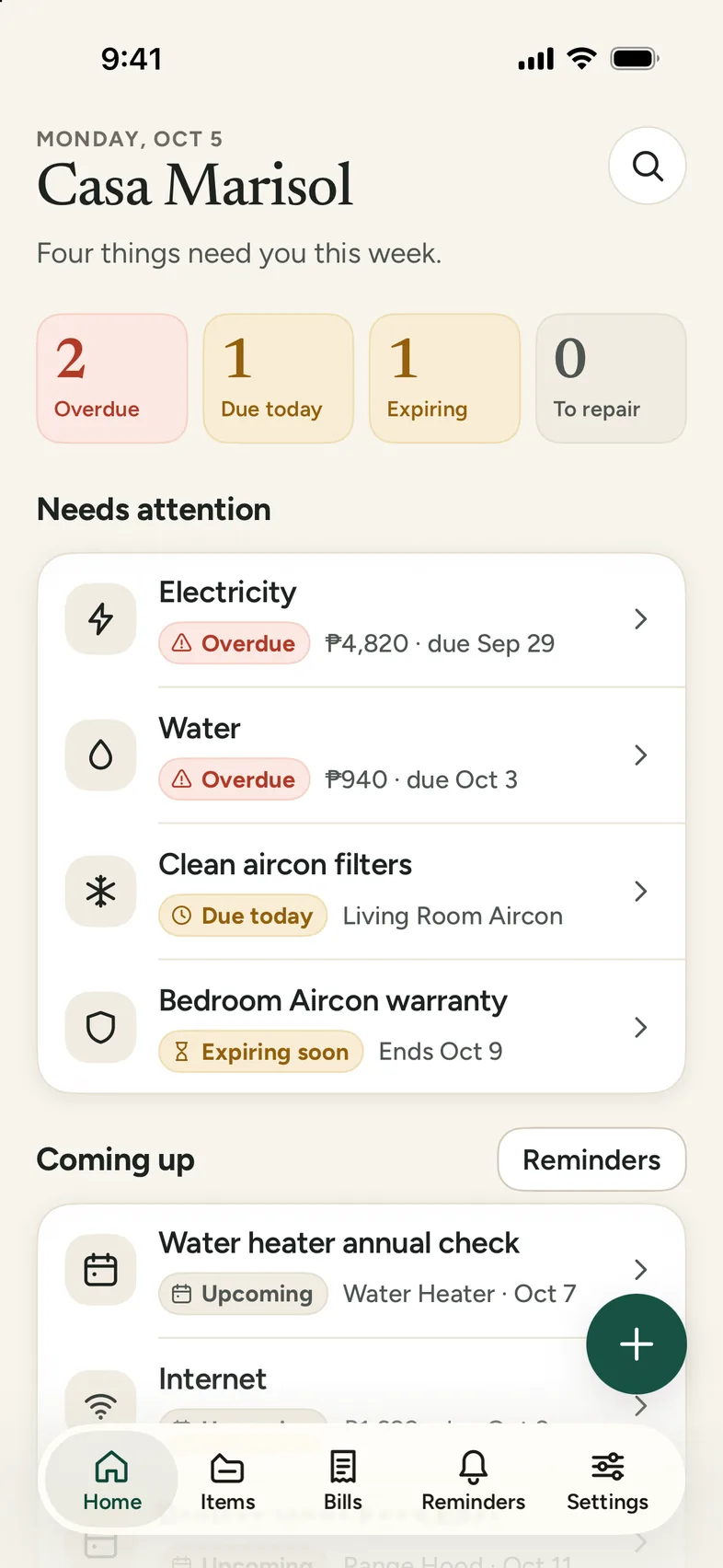
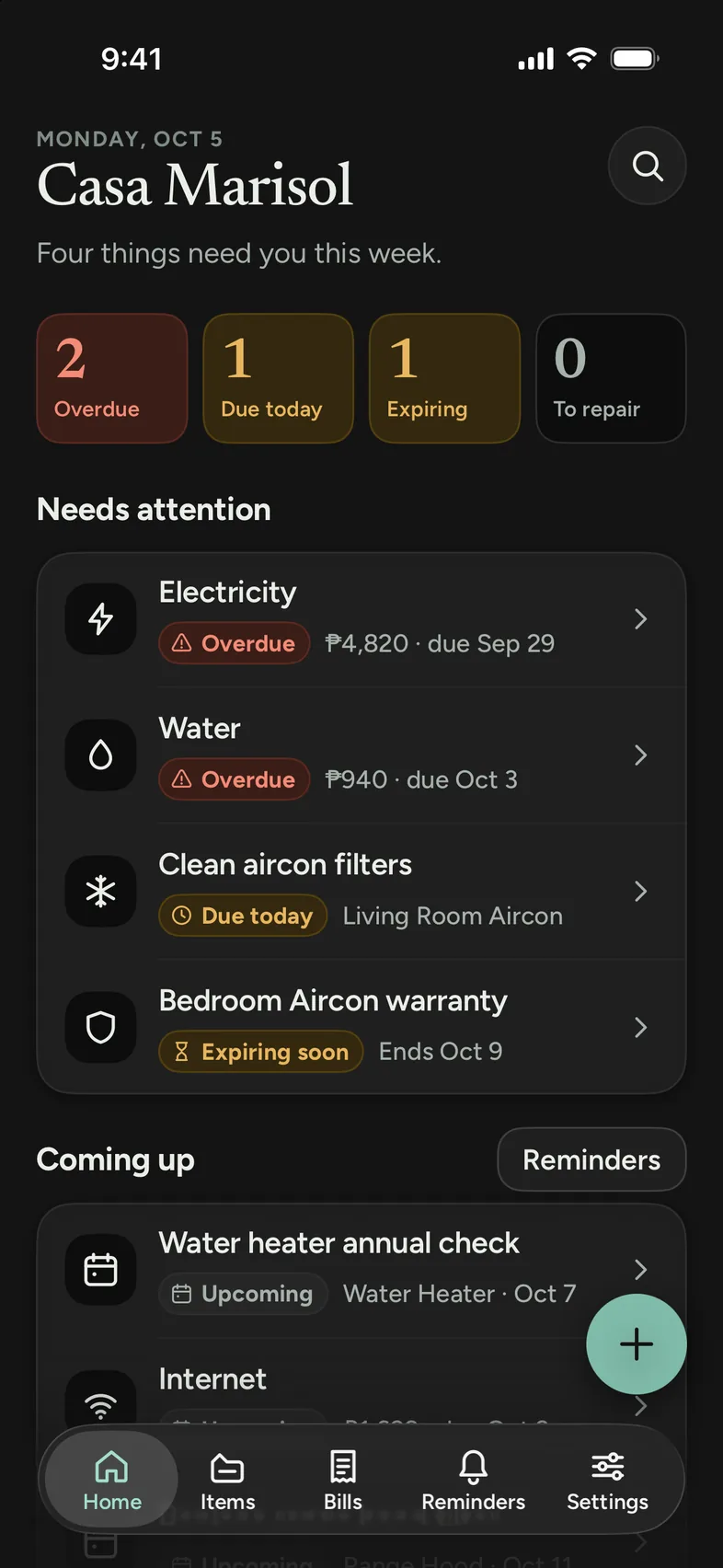
- 1. Enter a name for your home, such as "My Home".
- 2. Pick your currency. It starts with your phone's region.
- 3. Tap Get started. Moving from another phone? Tap Restore from backup instead.
Currency affects how amounts are displayed and stored. You can change it later in Settings, but existing amounts won't be converted.
02 Items
Adding items
On the Items tab, tap +. Only the name is needed. The brand, model, serial number, purchase date and price are optional, and you can add them later. Add a warranty from the item's page.
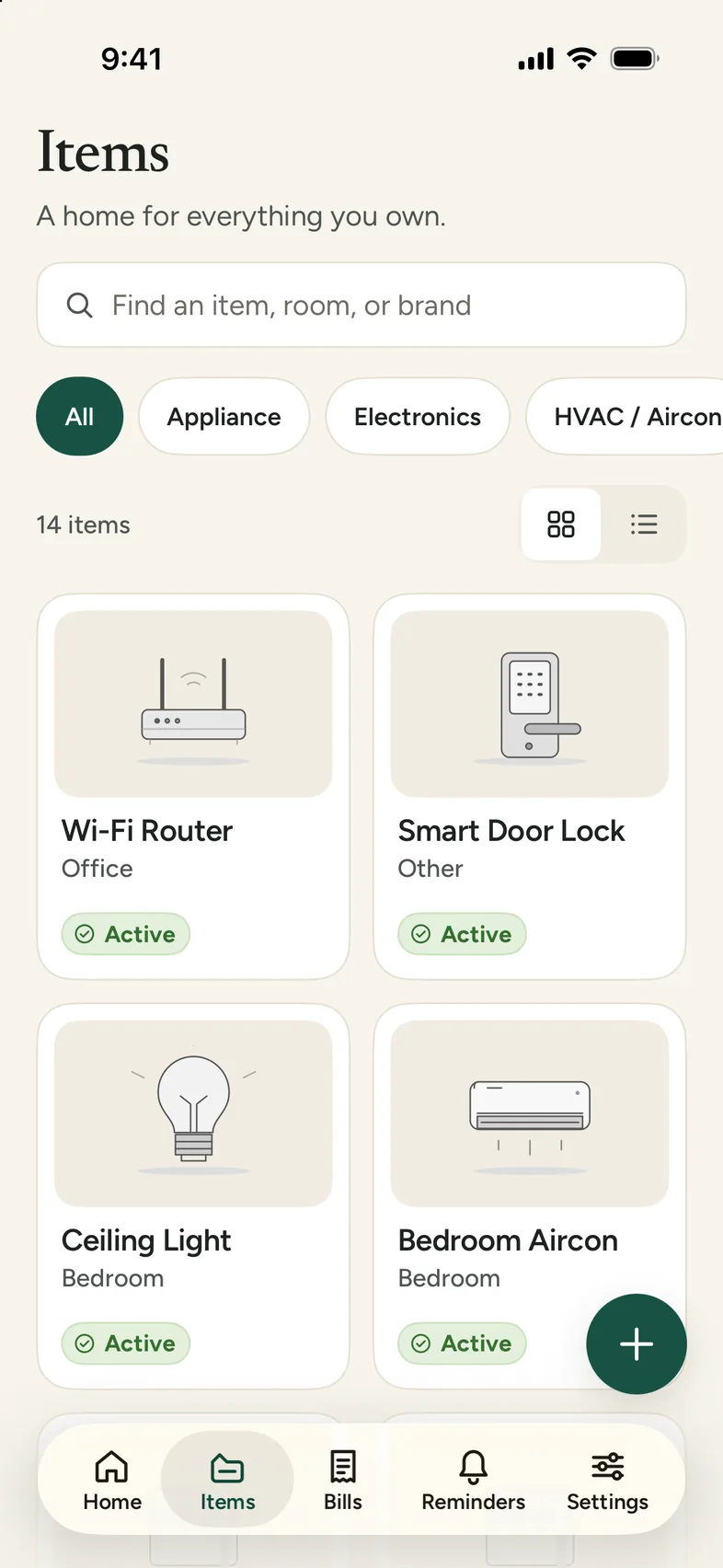
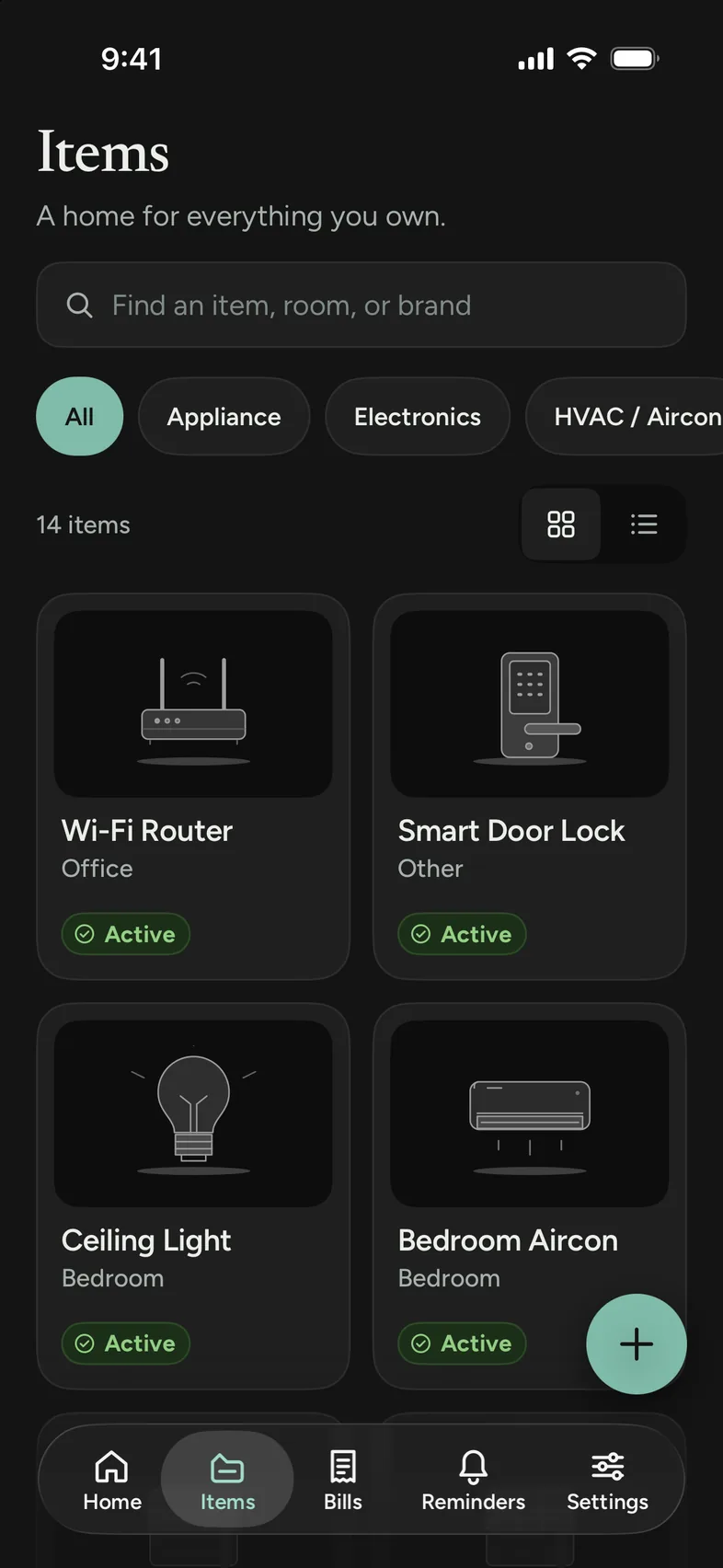
Items
Filter by category, or search by name, room or brand.
Rooms & categories
Each item has a room (Living Room, Bedroom, Kitchen, Bathroom, Laundry Area, Garage, Storage, Office, Outdoor or Other) and a category (Device, Appliance, Electronics, Furniture, Plumbing, Electrical, HVAC / Aircon, Security, Utility or Other). You can add your own categories in Settings, under Categories. The rooms are fixed.
Archiving vs deleting
Archive hides an item from the main list without deleting anything. You'll still find it under the Archived filter. Delete removes the item with its logs, warranties and photos, and asks you first. Both are in the item's ⋯ menu.
03 Bills
Bills and reminders
Bills are household costs that repeat, such as electricity, water, internet, rent or a credit card. Add the amount, the due date and how often it repeats. When you pay, tap Mark as paid and the next bill is added with its new due date.
Reminders are for anything with a date, like a service, a warranty renewal or a yearly inspection. They can be linked to an item or stand on their own.
Notification permissions
Domus Keep asks for notification permission once, right after first-launch setup. On Android 12 and newer, reminders arrive at the exact time when your phone allows exact alarms. If it doesn't, they can arrive a few minutes late. There's no separate prompt for this.
04 Purchase
Remove Ads
Remove Ads is a one-time purchase through Google Play or the App Store, linked to your account on that store. Every feature is already free, with no limit on how many records you keep. The purchase removes the ads and lets the app work offline.
- To buy: in Settings, tap Remove Ads, then confirm in Google Play or the App Store.
- To restore on a new phone: in Settings, tap Restore purchase.
- Refunds: Google Play and Apple handle refunds. Domus Keep doesn't process payments.
- The ads stop as soon as the purchase goes through.
05 Backup
Backing up your records
In Settings, open Backup & restore and tap Back up. This makes a .domuskeep file with:
- Your items, maintenance logs, warranties, bills and reminders
- Your rooms and categories
- Your home name and currency
Photos aren't included in backups yet. Save the file wherever you like, such as cloud storage, an email to yourself or a computer. To restore it, open Backup & restore, tap Restore and pick the file. Records in the backup overwrite the matching records on the phone. On a new phone you can also restore from the first-launch screen.
Contact
Email domus.support@juanlobby.com. Include your phone model, OS version, app version (in Settings, under About) and what you were trying to do.